
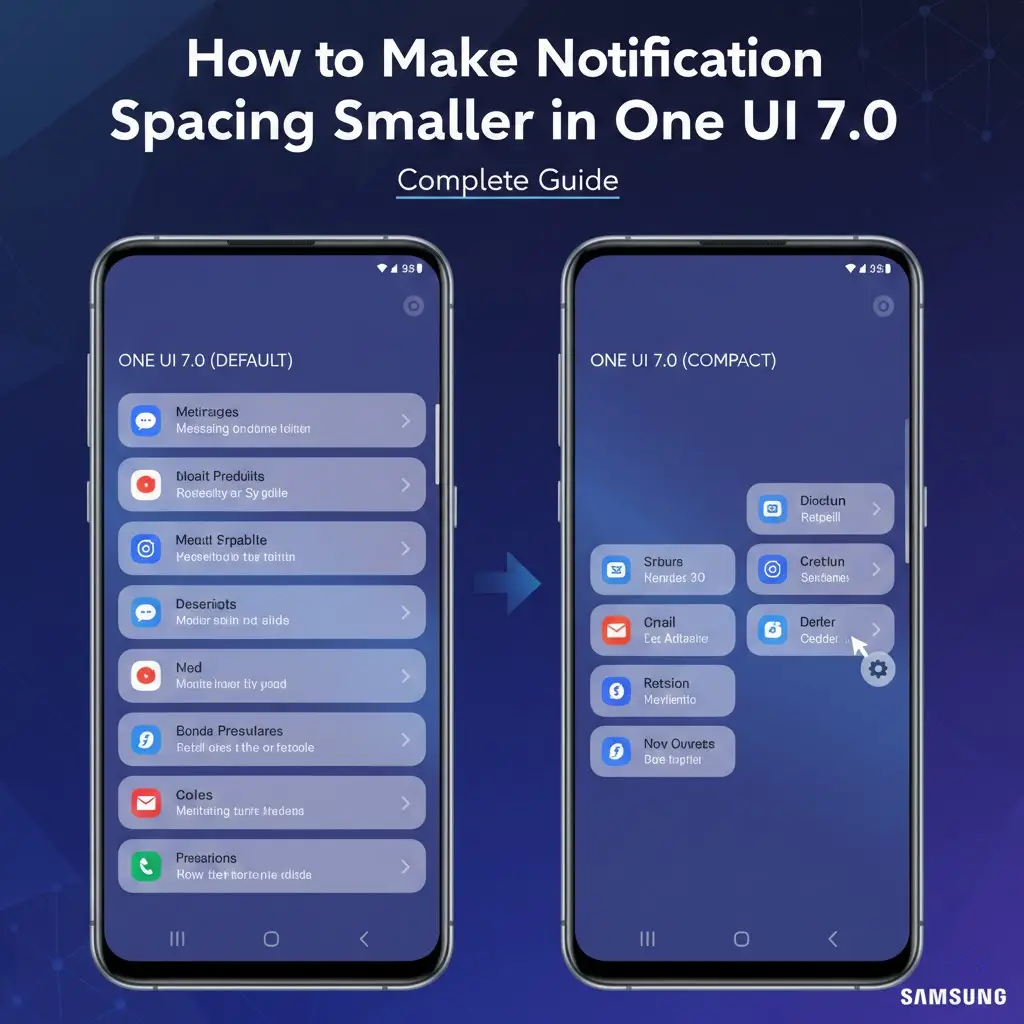
Samsung’s One UI 7.0 introduces a cleaner and more modern notification and quick settings design. While many users like the visual clarity, others feel the increased spacing makes the notification panel look oversized, less compact, and inefficient, especially on smaller screens or for users who prefer dense layouts.
If you want to make notification spacing smaller in One UI 7.0, it is important to understand one thing first. Samsung does not currently offer a single toggle that directly reduces notification padding. However, there are several effective methods that can significantly improve compactness and restore a more efficient feel.
This guide explains all working options, including official customization tools, system settings, and realistic limitations.
Why One UI 7.0 Uses Larger Notification Spacing
One UI 7.0 follows Samsung’s design philosophy that prioritizes clarity, touch comfort, and accessibility. The larger spacing exists for several reasons.
Better one handed usability
Clear separation between notifications
Improved readability
Reduced accidental touches
While these changes help casual users, power users often prefer tighter layouts that show more information at once. Because Samsung balances customization with consistency, spacing changes are only possible through indirect methods.
Method 1 Use Good Lock with QuickStar (Best Option)
This is the most effective and recommended method to make the notification panel feel more compact in One UI 7.0.
What Is Good Lock
Good Lock is an official Samsung customization suite available through the Samsung Galaxy Store. It allows deep interface customization without rooting your device.
One of its modules, QuickStar, focuses on the notification shade and quick settings panel.
Steps to Reduce Spacing Using QuickStar
Open the Samsung Galaxy Store
Search for and install Good Lock
Launch Good Lock
Download and install the QuickStar module
Open QuickStar and enable it
Navigate to Quick Settings customization
Change the Quick Settings grid layout
Most devices allow switching from the default grid to denser layouts with more icons per row. Increasing the number of tiles reduces spacing and makes the panel feel more compact.
What This Method Changes
Quick Settings tile spacing
Overall density of the quick panel
Visual compactness of the notification shade
Limitations
Padding between individual notifications cannot be fully removed
Available options may vary depending on region or device
Despite these limits, this is the closest solution without affecting system stability.
Method 2 Switch Notification Panel Layout
One UI 7.0 uses a split notification system by default, separating notifications and quick settings. While this does not technically reduce padding, it can make the interface feel much denser.
How to Switch Back to a Unified Panel
Swipe down from the top right to open Quick Settings
Tap the pencil icon
Open Panel settings
Select Together
This merges notifications and quick settings into a single panel similar to older One UI versions.
Why This Helps
Reduces the feeling of wasted space
Displays more content at once
Feels more familiar to long time Samsung users
Limitations
Actual spacing between notifications remains mostly unchanged
This improves perception more than physical padding
Method 3 Adjust Display Size and Screen Zoom
If you want smaller spacing across the entire system, including notifications, icons, and menus, this method works reliably.
Steps to Adjust Display Size
Open Settings
Go to Display
Reduce Screen zoom
Adjust Font size if needed
Reducing screen zoom shrinks UI elements globally, making notifications appear closer together.
Pros
Works instantly
No additional apps required
Affects the entire interface consistently
Cons
Text and icons become smaller
May reduce readability for some users
Not ideal if you only want notification changes
This option is best for users who prefer a compact interface everywhere.
What You Cannot Do in One UI 7.0
As of now, One UI 7.0 does not allow:
Manual control over notification padding
A true compact notification mode
Per notification spacing adjustments
Advanced density sliders like stock Android developer options
These limitations are intentional to maintain accessibility and design consistency.
Are Third Party Apps or Scripts Worth It
Some advanced users experiment with overlay apps, ADB commands, or scripts. These are not recommended for most users because:
They may break after updates
They can cause visual glitches
They require technical knowledge
They are unsupported by Samsung
For stability and safety, official tools remain the best choice.
Best Setup for a Compact Notification Experience
For the best results, combine these adjustments.
Use Good Lock with QuickStar for denser quick settings
Switch the panel layout to Together
Slightly reduce Screen zoom if needed
This combination provides the most compact experience possible in One UI 7.0 without rooting or compromising stability.
Key Takeaway
One UI 7.0 prioritizes clean and spacious design by default, and there is no direct setting to shrink notification padding. However, by using Samsung’s official Good Lock app, layout changes, and display scaling, you can significantly reduce wasted space and create a more productivity focused notification panel.
These adjustments make One UI 7.0 feel far more efficient while preserving Samsung’s polished user experience.