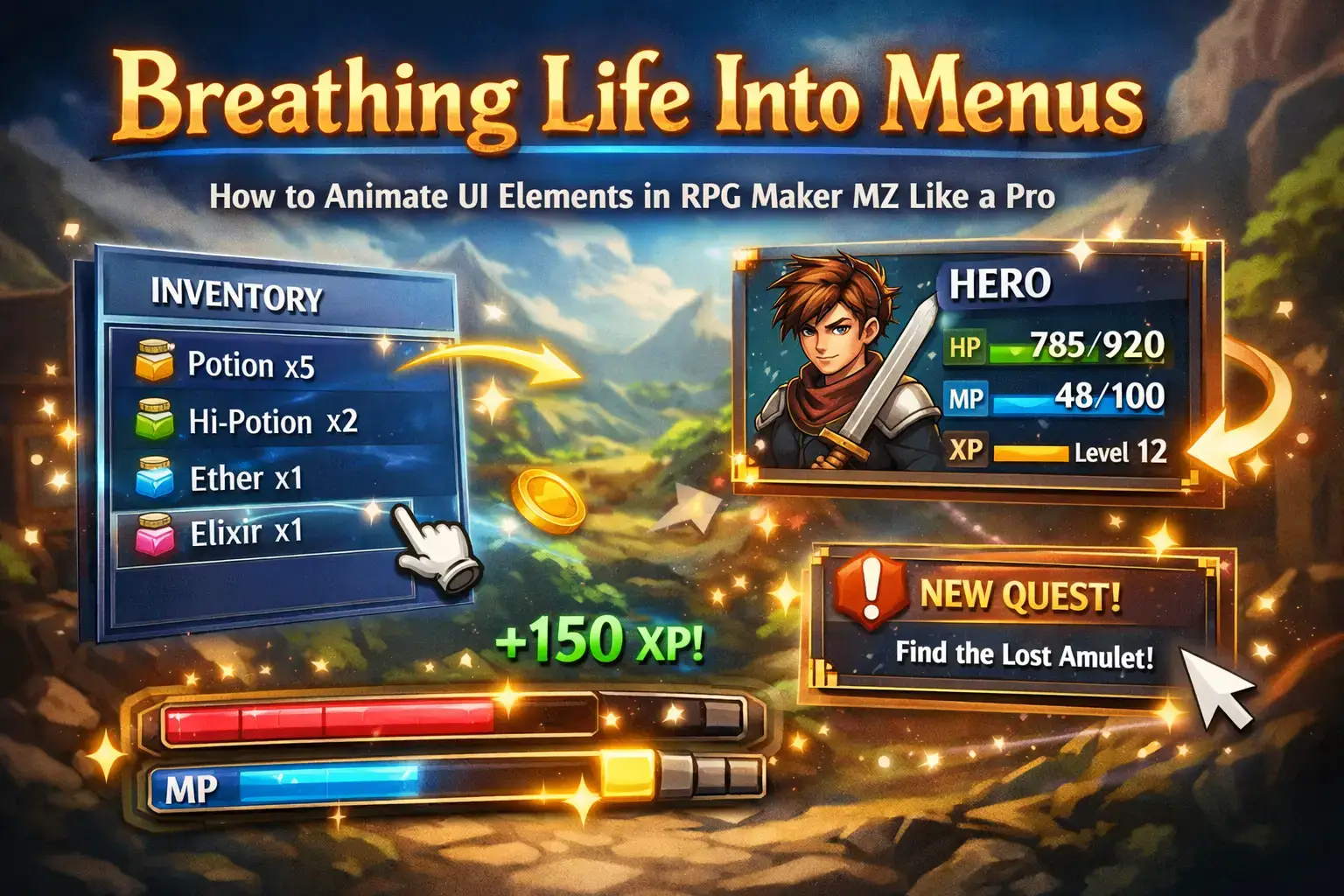
Breathing Life Into Menus: How to Animate UI Elements in RPG Maker MZ Like a Pro
Few things make a game feel unfinished quite like stiff, unmoving menus.
When players open an inventory, pause the game, or check their stats, they expect the interface to respond. Even small movements, a panel sliding in, a bar filling smoothly, a cursor pulsing, can make a game feel modern and intentional. When those things don’t happen, the game can feel cheap, even if everything else is well designed.
RPG Maker MZ doesn’t make this easy.
Out of the box, the UI system is static. Menus snap into place. HUD elements don’t move. There’s no built-in animation timeline like you’d find in Unity or Godot. Because of that, many developers assume UI animation simply isn’t possible in RPG Maker.
But that assumption is wrong.
Just like coding feels harder than it actually is, animating UI in RPG Maker MZ feels more limited than it truly is. With the right mindset and a few practical techniques, you can create animated menus, HUDs, and interfaces that feel polished and professional.
I’m not saying RPG Maker MZ magically turns into a modern UI engine. It doesn’t.
But I am saying that its limitations are more about workflow than capability.
How UI Actually Works in RPG Maker MZ
Before talking about animation, it helps to understand how RPG Maker MZ handles UI in the first place.
Unlike modern engines, MZ doesn’t treat UI as a separate system with timelines, transitions, and keyframes. Instead, almost everything on screen is one of four things:
- Pictures
- Sprites
- Windows
- Events
There’s no native “animate this menu” button. Instead, animation is constructed by combining basic tools in clever ways.
At first, this feels like a limitation. Over time, it becomes a strength.
Once you understand that UI elements are basically just images being moved, faded, swapped, or resized, you realize you’re not restricted. You’re composing animations manually.
That’s why so many RPG Maker developers create impressive interfaces despite the engine’s simplicity.
So Can You Animate UI in RPG Maker MZ?
Short answer: yes.
Long answer: yes, but not the way you might expect.
RPG Maker MZ supports animation through:
- Event commands
- Picture manipulation
- Sprite sheets
- Plugins
Default menus don’t animate much, but custom UI built from pictures can do almost anything. They can slide, fade, pulse, flash, or animate frame by frame.
Once you stop thinking in terms of menu animation systems and start thinking in terms of moving images over time, everything opens up.
The Simplest Method: Show Picture and Move Picture
If there’s one tool you should understand deeply, it’s Show Picture.
This single command is the backbone of most UI animation in RPG Maker MZ.
With it, you can:
- Display custom UI elements
- Position them anywhere on screen
- Move them smoothly using Move Picture
- Fade them in or out with opacity changes
For example, instead of having a menu instantly appear, you can place the menu image off screen, show the picture, and move it into place over 30 to 60 frames.
That’s it. You’ve just created a smooth UI transition.
This approach works surprisingly well for menus, notifications, tooltips, and overlays, and it requires no plugins.
Frame by Frame UI Animation
Sometimes you don’t want movement. You want life.
A pulsing cursor.
A glowing icon.
A button that subtly animates.
In those cases, frame by frame animation works perfectly.
The idea is simple. Create multiple versions of the same UI element, swap them using Show Picture, and add short waits between frames.
This method is especially useful for small UI elements like selection cursors, quest icons, and notification indicators.
It’s not ideal for full menus, but for tiny details, it adds a lot of polish with very little complexity.
When Plugins Become Worth It
At some point, manual animation becomes tedious.
That’s when plugins stop being optional and start being practical.
The RPG Maker MZ community has created plugins that allow animated gauges, HUD motion, hover effects, and dynamic UI layouts. Tools like HUD builders and custom menu plugins handle a lot of animation logic for you.
This doesn’t mean plugins are cheating.
It means you’re choosing efficiency.
Most professional looking RPG Maker interfaces rely on plugins in some form.
Animated HUDs Feel Instantly Better
If you only animate one thing, make it the HUD.
Static health bars feel outdated. Smooth, animated bars feel responsive and modern.
You can create gradually draining HP bars, animated MP or stamina meters, and flashing damage indicators.
Plugins make this easier, but it’s also possible with clever picture resizing and opacity changes. This works especially well in action RPGs where the HUD is always visible.
Custom Sprite Sheets Give You Full Control
For developers who want maximum control, sprite sheets are the way forward.
By designing UI animations frame by frame in tools like Aseprite or Photoshop, you can import polished assets directly into RPG Maker MZ.
Once inside the engine, you can loop animations, sync them with events, and trigger them contextually.
If you’ve worked with animated tiles or character sheets before, this approach will feel very familiar.
UI Animation Doesn’t Always Live in Menus
Some UI elements don’t belong in menus at all.
Floating icons.
Map indicators.
Interactive objects that behave like UI.
These can be animated directly on the map using events and character sheets. A tree gently swaying or an icon bobbing up and down adds subtle life to the world.
At that point, the line between UI and environment disappears, and that’s a good thing.
External Tools Help a Lot
RPG Maker MZ is not an animation tool, and that’s okay.
Most high quality UI animation starts outside the engine in tools like Aseprite, Photoshop, or Spine. You design the animation once, export it, and let RPG Maker display it.
This workflow bridges the gap between MZ’s simplicity and professional results.
You Don’t Need Money to Animate UI
It’s easy to assume polished UI requires paid plugins and assets.
It doesn’t.
You can animate UI in RPG Maker MZ using Show Picture, Move Picture, frame swapping, free plugins, and community assets. Many excellent games are built entirely with free tools. The difference is patience and intentional design, not budget.
A Few Rules That Make UI Animation Feel Professional
More animation is not better animation.
Good UI animation is fast, subtle, and supportive of usability. If players notice your UI animation, it’s probably too much. The best animations feel natural, not flashy.
Final Thoughts
Animating UI elements in RPG Maker MZ is not about fighting the engine.
It’s about understanding how it thinks.
Once you stop expecting built in animation systems and start working with pictures, events, and sprites, you realize how flexible the engine actually is.
Static menus make games feel unfinished.
Living interfaces make them feel intentional.
And with the techniques above, you can turn RPG Maker MZ’s limitations into one of its biggest strengths.
Few things make a game feel unfinished quite like stiff, unmoving menus.
When players open an inventory, pause the game, or check their stats, they expect the interface to respond. Even small movements, a panel sliding in, a bar filling smoothly, a cursor pulsing, can make a game feel modern and intentional. When those things don’t happen, the game can feel cheap, even if everything else is well designed.
RPG Maker MZ doesn’t make this easy.
Out of the box, the UI system is static. Menus snap into place. HUD elements don’t move. There’s no built-in animation timeline like you’d find in Unity or Godot. Because of that, many developers assume UI animation simply isn’t possible in RPG Maker.
But that assumption is wrong.
Just like coding feels harder than it actually is, animating UI in RPG Maker MZ feels more limited than it truly is. With the right mindset and a few practical techniques, you can create animated menus, HUDs, and interfaces that feel polished and professional.
I’m not saying RPG Maker MZ magically turns into a modern UI engine. It doesn’t.
But I am saying that its limitations are more about workflow than capability.
How UI Actually Works in RPG Maker MZ
Before talking about animation, it helps to understand how RPG Maker MZ handles UI in the first place.
Unlike modern engines, MZ doesn’t treat UI as a separate system with timelines, transitions, and keyframes. Instead, almost everything on screen is one of four things:
- Pictures
- Sprites
- Windows
- Events
There’s no native “animate this menu” button. Instead, animation is constructed by combining basic tools in clever ways.
At first, this feels like a limitation. Over time, it becomes a strength.
Once you understand that UI elements are basically just images being moved, faded, swapped, or resized, you realize you’re not restricted. You’re composing animations manually.
That’s why so many RPG Maker developers create impressive interfaces despite the engine’s simplicity.
So Can You Animate UI in RPG Maker MZ?
Short answer: yes.
Long answer: yes, but not the way you might expect.
RPG Maker MZ supports animation through:
- Event commands
- Picture manipulation
- Sprite sheets
- Plugins
Default menus don’t animate much, but custom UI built from pictures can do almost anything. They can slide, fade, pulse, flash, or animate frame by frame.
Once you stop thinking in terms of menu animation systems and start thinking in terms of moving images over time, everything opens up.
The Simplest Method: Show Picture and Move Picture
If there’s one tool you should understand deeply, it’s Show Picture.
This single command is the backbone of most UI animation in RPG Maker MZ.
With it, you can:
- Display custom UI elements
- Position them anywhere on screen
- Move them smoothly using Move Picture
- Fade them in or out with opacity changes
For example, instead of having a menu instantly appear, you can place the menu image off screen, show the picture, and move it into place over 30 to 60 frames.
That’s it. You’ve just created a smooth UI transition.
This approach works surprisingly well for menus, notifications, tooltips, and overlays, and it requires no plugins.
Frame by Frame UI Animation
Sometimes you don’t want movement. You want life.
A pulsing cursor.
A glowing icon.
A button that subtly animates.
In those cases, frame by frame animation works perfectly.
The idea is simple. Create multiple versions of the same UI element, swap them using Show Picture, and add short waits between frames.
This method is especially useful for small UI elements like selection cursors, quest icons, and notification indicators.
It’s not ideal for full menus, but for tiny details, it adds a lot of polish with very little complexity.
When Plugins Become Worth It
At some point, manual animation becomes tedious.
That’s when plugins stop being optional and start being practical.
The RPG Maker MZ community has created plugins that allow animated gauges, HUD motion, hover effects, and dynamic UI layouts. Tools like HUD builders and custom menu plugins handle a lot of animation logic for you.
This doesn’t mean plugins are cheating.
It means you’re choosing efficiency.
Most professional looking RPG Maker interfaces rely on plugins in some form.
Animated HUDs Feel Instantly Better
If you only animate one thing, make it the HUD.
Static health bars feel outdated. Smooth, animated bars feel responsive and modern.
You can create gradually draining HP bars, animated MP or stamina meters, and flashing damage indicators.
Plugins make this easier, but it’s also possible with clever picture resizing and opacity changes. This works especially well in action RPGs where the HUD is always visible.
Custom Sprite Sheets Give You Full Control
For developers who want maximum control, sprite sheets are the way forward.
By designing UI animations frame by frame in tools like Aseprite or Photoshop, you can import polished assets directly into RPG Maker MZ.
Once inside the engine, you can loop animations, sync them with events, and trigger them contextually.
If you’ve worked with animated tiles or character sheets before, this approach will feel very familiar.
UI Animation Doesn’t Always Live in Menus
Some UI elements don’t belong in menus at all.
Floating icons.
Map indicators.
Interactive objects that behave like UI.
These can be animated directly on the map using events and character sheets. A tree gently swaying or an icon bobbing up and down adds subtle life to the world.
At that point, the line between UI and environment disappears, and that’s a good thing.
External Tools Help a Lot
RPG Maker MZ is not an animation tool, and that’s okay.
Most high quality UI animation starts outside the engine in tools like Aseprite, Photoshop, or Spine. You design the animation once, export it, and let RPG Maker display it.
This workflow bridges the gap between MZ’s simplicity and professional results.
You Don’t Need Money to Animate UI
It’s easy to assume polished UI requires paid plugins and assets.
It doesn’t.
You can animate UI in RPG Maker MZ using Show Picture, Move Picture, frame swapping, free plugins, and community assets. Many excellent games are built entirely with free tools. The difference is patience and intentional design, not budget.
A Few Rules That Make UI Animation Feel Professional
More animation is not better animation.
Good UI animation is fast, subtle, and supportive of usability. If players notice your UI animation, it’s probably too much. The best animations feel natural, not flashy.
Final Thoughts
Animating UI elements in RPG Maker MZ is not about fighting the engine.
It’s about understanding how it thinks.
Once you stop expecting built in animation systems and start working with pictures, events, and sprites, you realize how flexible the engine actually is.
Static menus make games feel unfinished.
Living interfaces make them feel intentional.
And with the techniques above, you can turn RPG Maker MZ’s limitations into one of its biggest strengths.